
When fixtures are added on Teamo, they are paired with a squad such as the Mens 4’s or the U14 Dev Girls. Creating the fixture adds the match into the calendar of everyone in that squad, who can then use Teamo to mark if they are available to play (or not).
As the club gets used to Teamo, one of the biggest differences for players is the meaning of ‘Availability’ in notifications about matches
In HitSports, clicking ‘available’ on the email sharing details of a match meant the player was confirming they were playing in the match.
In Teamo, players clicking ‘available’ on the notification of a match means they can play in the match if selected. Captain/Managers will look at who is available for a match and select the players they want – and players then need to confirm they have seen the selection and can play.
To Select players for match-day
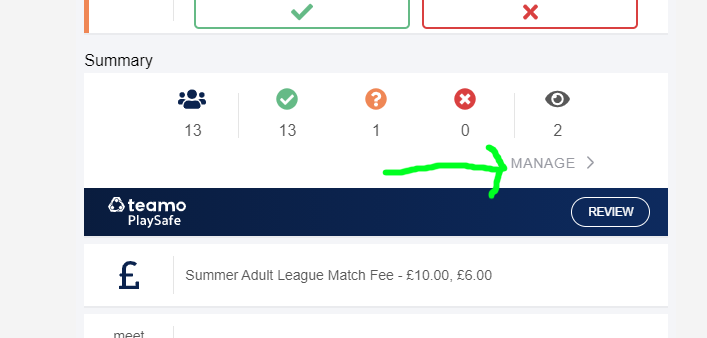
On desktop or mobile, select the fixture from your calendar. Halfway down, under the row of icons is a link called ‘Manage‘. Click on this link.
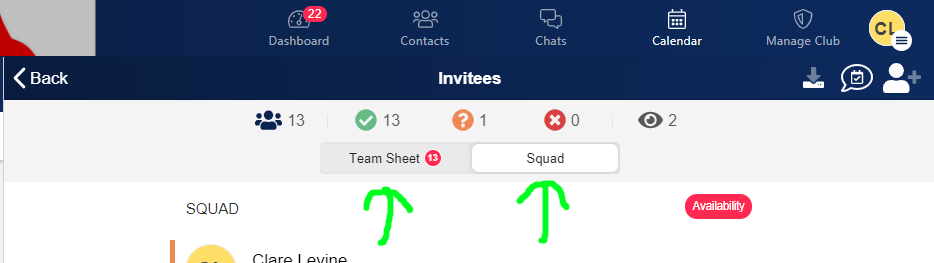
Select ‘Squad’ to see who which players are available – from here you can choose which players to add to the Team Sheet – click on the name of the individual and add ‘Select’.
Select ‘Team Sheet’ to see who you have added to the team and their latest Availability status.
How do I know who is Available?
Availability is shown by the thin band of colour down the left hand side of the listing.
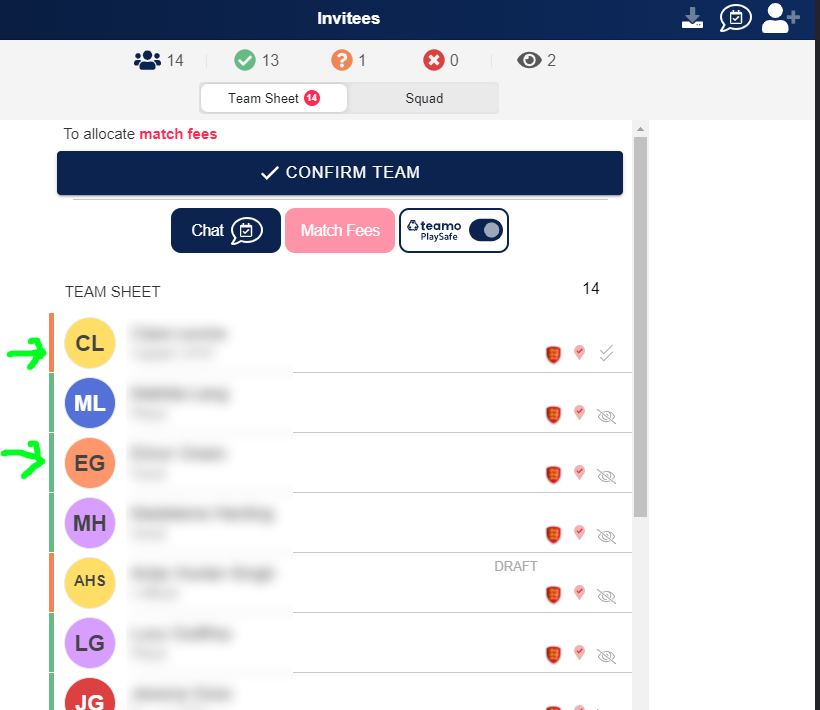
At the top of the page you’ll see the lots of icons – the left most icon has a number next to it – this is the number of people in your team.
Players added to the team will see the ‘Selected’ notification on the fixture in their calendar…
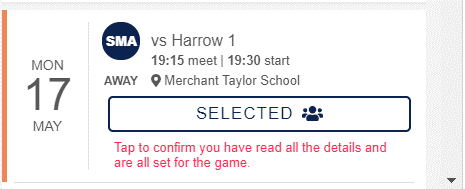
…and when they tap the ‘Selected’ button to confirm they can play, this will change the button to blue:
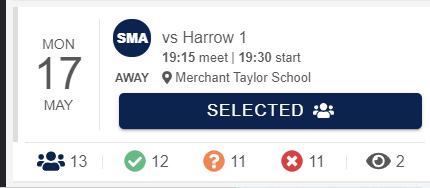
Captains can see which players have confirmed their selection by looking at the list of players on the Team sheet for the fixture – there will be a tick next to the name of those who have confirmed their selection:

Invite Players from other squads
Click on the Manage link to bring up the Team/Squad for the fixture. Click on the ‘Add a person‘ icon in the top right:
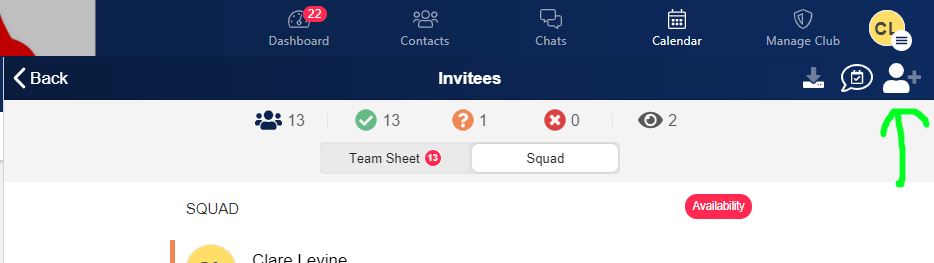
Warning – it can take a few seconds for the list to load.
Search through the list of players and add them to your squad. The player(s) will now appear in the squad list for the fixture and will be sent a notification. If you need to un-select them, click on the player’s name in the squad list and a list of options will pop up.
Amending your player’s availability for them
As a Captain, players often tell you their availability in conversation or via an email or message. If you need to amend a player’s availability for them, you can do this
- Head to the Calendar and select the fixture
- Tap Manage.
- The Team Sheet / Squad list will appear
- Click on the player you want to amend and you have the option to edit their availability.