
Captains and Team Managers can assign match fees to a fixture on the day of the match or at any point afterwards (Teamo won’t let you assign match fees in advance in case a match gets cancelled).
Asking for a match fee
First you will need to confirm your team. Find the fixture in your calendar and click on the Manage link
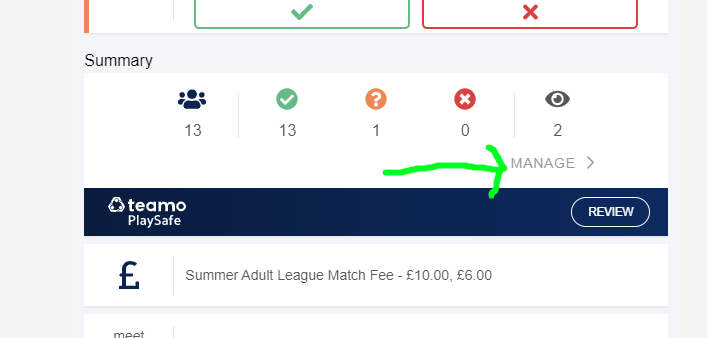
Check the players in the list and click ‘Confirm Team’

If you need to change a match fee for an individual, select the Player and select the ‘Rate’ option.
Select Done and the players will receive a Payment Request. If you subsequently need to amend the match fee for an individual player, see the section below on deleting and amending fees.
Chasing payments
Captains and Managers can see who has match fees outstanding, and for which match.
Click on the circle icon with your initials on it (top left on the mobile app, top right on desktop version). If you are the Captain or Manager of a team, you will see an option that is ‘Team Payments’.
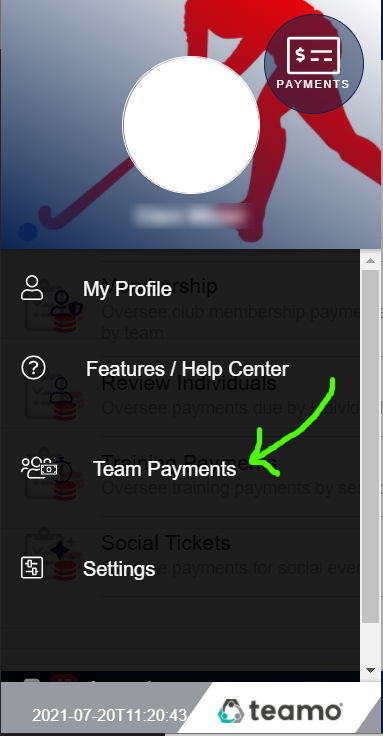
Clicking on this will give you several options –

If you are the Captain / Manager of more than one team you will be asked which team you wish to retrieve payment information for.
Select the top option to look at who has match fees outstanding and for which match. If a match is showing with fees outstanding, click into the summary details to see which individuals haven’t paid.

Above the list of people yet to pay is an icon made up of a speech bubble and an @ sign. Clicking on this gives a quick way of sending a notification to the player to remind them to make the payment. Toggle the ‘Send Email Copy’ option on to send an email as well as the Teamo notification.
Deleting and amending match fees or marking as paid by cash
If the player has paid by cash it is possible to mark the payment as paid. If the player didn’t end up playing on the day, it is possible to delete the invoice for the match.
In Team Payments, click on the match that has the fee that you want to adjust. Click on the relevant player and choose the option to apply: