
When you add a fixture via Teamo, the app will ask you which ACHC team to attach to the fixture. Every player in that squad will be sent a notification about the upcoming game so they can give their availability. You can then select players to form the team for the fixture.
This is different to how we worked with HitSports so remind your squad…
– that just because they have said they are available, this doesn’t mean they are selected for the match
– if selected, they should use Teamo to confirm their selection for the fixture to their coach or captain
Creating a fixture
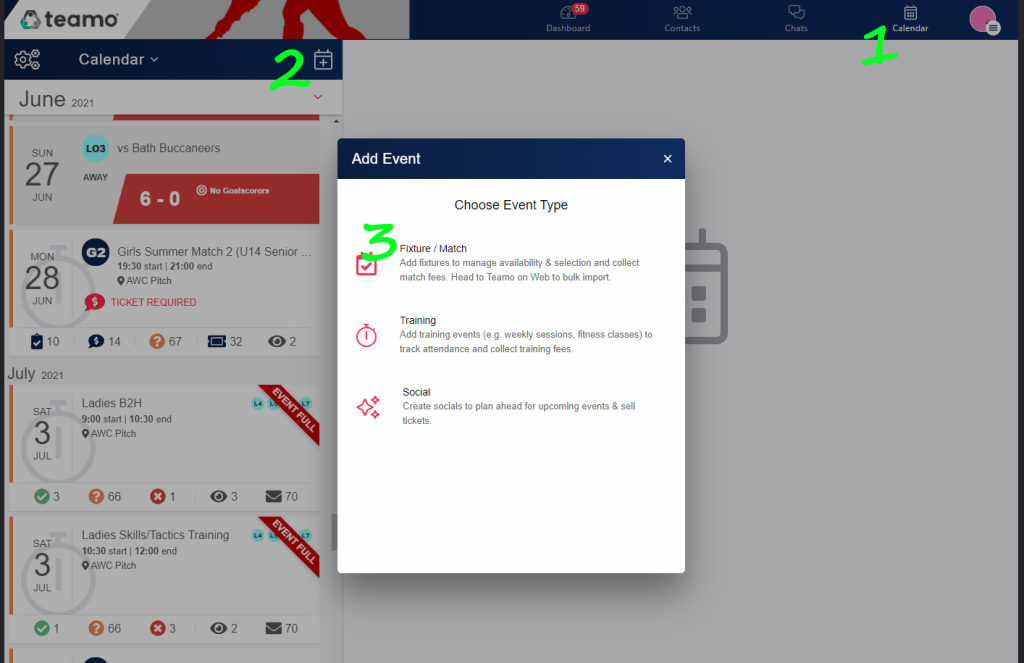
To create a single fixture, go to the Calendar on your desktop (step #1 in the screen shot below). At the top of the list of event tap the ‘+’ in the top right corner (#2) to add your event, then select Fixture/Match (#3) from the pop-up menu.
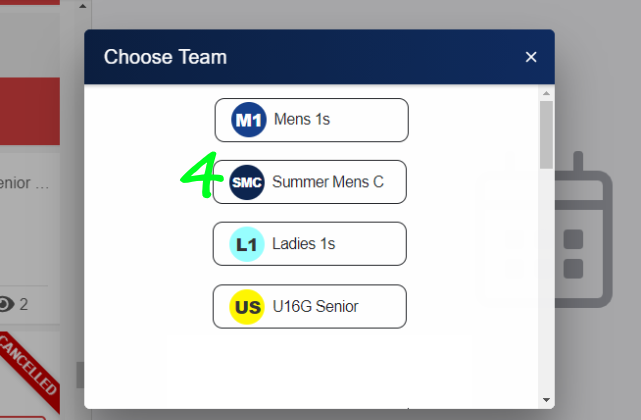
If you manage multiple teams, you will be given an option to select which team you wish to create the fixture for (#4).
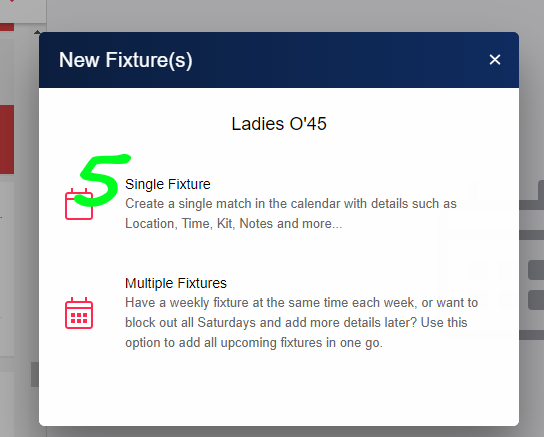
Select your team then tap Single Fixture (#5).
Enter your fixture details such as match time, meet time, location etc. Most of the fields are self explanatory, but here’s help on a couple that may not be clear…
Location – clicking on this field will bring up a list of locations already added to Teamo. If the location you need isn’t shown, click on ‘New Location’ at the top of the form to add the details for your match.
You can add details of a specific pitch to the details of your match once you have chosen the location.
Teamo PlaySafe – for now, all players need to confirm that they are safe to play. Toggle this setting to on to enable players to do self-check in before the game.
Match Fees – This is the fee that will be charged to those players playing. You can amend amounts for individuals later, once the fixture is set up, e.g. for goalkeepers with their own kit.
Make the changes, then tap Done in the top right of the form.
Advanced Settings
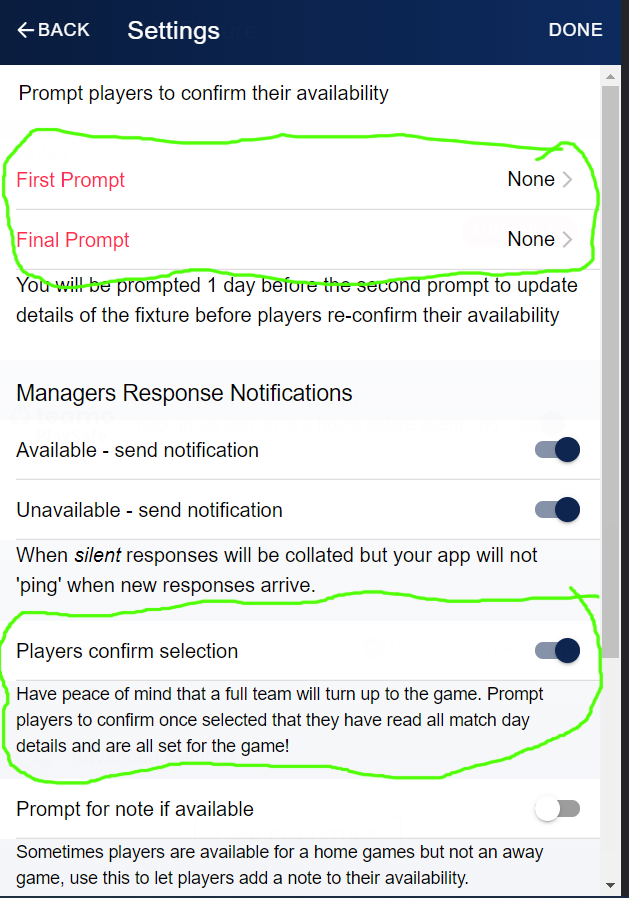
If you have toggled the Notify Team field to on, then everyone in the squad will be notified via Teamo that you have added a new fixture. They might just be wonderful and confirm their availability for that fixture… but in case they don’t, in Advanced Settings for the fixture you can set prompts to be sent in the run up to the game.
Toggle the ‘Players confirm selection’ setting to on. This will add a check box to the fixture on the players calendar for them to click.
Edit a fixture
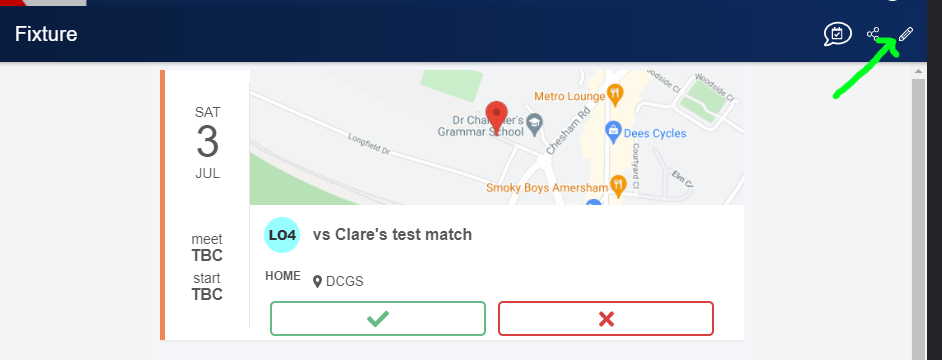
You can edit a fixture later by clicking on the fixture in your Calendar and clicking the pencil in the top right of the fixture. Making changes will send a new notification prompt to the squad.
Cancelling or deleting a fixture
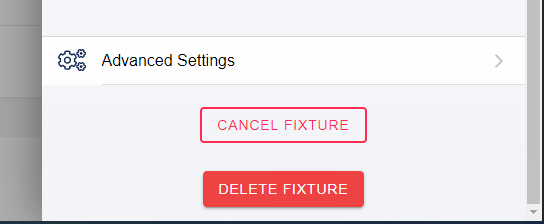
If the fixture is cancelled, click the pencil to edit the fixture and scroll to the bottom of the form. You will see two options: Cancel Fixture or Delete Fixture. If the game has been called off, cancel the fixture. The players will still be able to see the fixture but it will show on their calendar as cancelled. If you made a mistake – e.g. started a fixture and realised it was a duplicate – then click Delete Fixture
Now you will probably want to select your team from the individuals in your squad, plus add some others to your selected team.